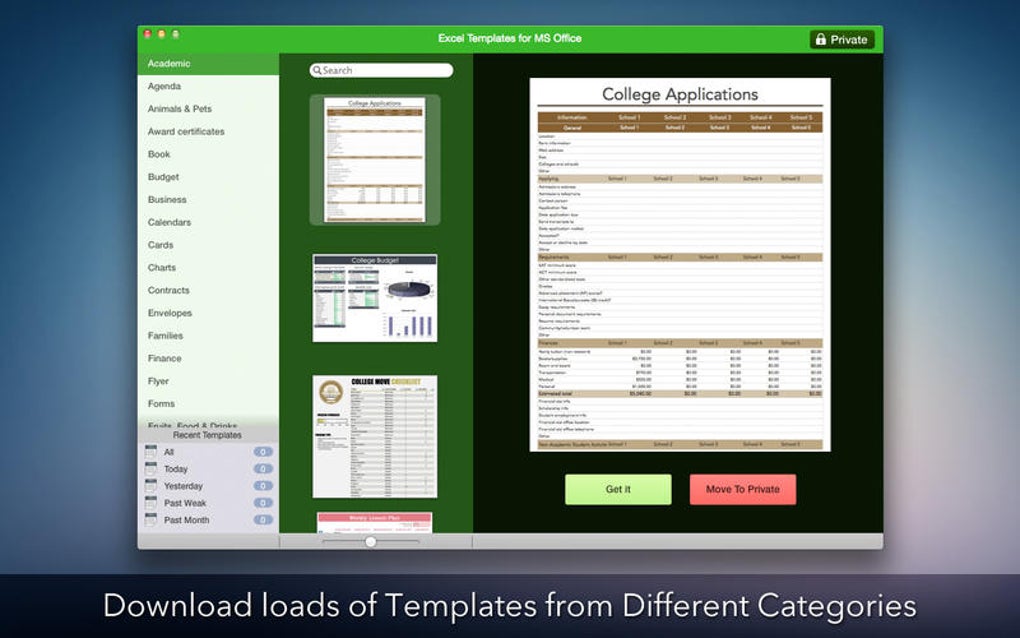

Download Templates – Excel Templates for Mac, Business Finance Tool
Overview
Templates for Microsoft Excel is a full‑version business‑software program designed specifically for macOS users who need ready‑made financial spreadsheets. Launched in 2016, the application has steadily grown its reputation among accountants, financial analysts, and small‑business owners who prefer a native Mac experience rather than juggling Windows‑only add‑ins. The current version, 1.2, was refreshed on 1 April 2017 and continues to receive security patches and minor feature updates.
Though the install size isn’t published, the lightweight nature of Excel templates means it occupies only a modest amount of disk space, leaving ample room for your own data files.
The software belongs to the Business category with a sub‑category of Finance, reflecting its core purpose: to accelerate budgeting, forecasting, and reporting tasks by providing a library of pre‑formatted worksheets. Users can download the program in English and run it on any Mac that supports OS X 10.9 or later.
Because it integrates directly with Microsoft Excel, you benefit from full compatibility with existing workbooks while enjoying a curated set of templates that cover profit‑and‑loss statements, cash‑flow projections, balance sheets, and more.
In terms of popularity, the tool has logged two downloads since its inclusion in our selection and saw a quiet week with zero new downloads. That modest figure isn’t a reflection of quality; rather, it signals a niche audience that values precision over mass appeal.
Whether you are a freelancer setting up a simple invoicing system or a CFO seeking a secure, Mac‑native template suite, this program offers a free‑of‑charge, secure download experience and a straightforward licensing model (free for personal use, paid upgrade for commercial deployment).
Below we dive deep into the feature set, installation steps, system requirements, and real‑world pros and cons, helping you decide if this Excel template pack is the right addition to your financial toolbox.
Key Features of Templates for Microsoft Excel on Mac
- Extensive Template Library: Over 150 pre‑designed spreadsheets covering income statements, expense trackers, loan amortization schedules, and tax calculators.
- One‑Click Insertion: Add a template directly from the Excel ribbon with a single click, eliminating the need to browse file folders.
- Dynamic Formulas: All templates come with built‑in formulas that auto‑update when you modify input cells, ensuring accurate totals without manual recalculation.
- Custom Branding: Replace placeholder logos and colors with your company’s branding to create professional‑looking reports for clients.
- Multi‑Currency Support: Switch between USD, EUR, GBP, and other currencies instantly; exchange rates can be linked to external data feeds.
- Data Validation Rules: Prevent entry errors by restricting inputs to specific ranges, dates, or list selections.
- Secure Export Options: Export any template to PDF or password‑protected XLSX files, meeting corporate compliance standards.
- Regular Updates: The development team releases quarterly updates that add new templates, improve formula accuracy, and patch any security concerns.
- Mac‑Optimized UI: A clean, native macOS interface that blends seamlessly with Excel’s own design language, reducing learning curves for Mac users.
- Help Center Integration: Context‑sensitive help articles and video tutorials are embedded within the application, accessible via the Help menu.
Installation, Compatibility, Pros & Cons, and Frequently Asked Questions
Installation & First‑Time Setup
Downloading Templates for Microsoft Excel is straightforward. Visit the official product page, click the “Download for macOS” button, and save the .dmg file to your Downloads folder. Open the disk image, then drag the application icon into your /Applications directory. macOS may prompt you to confirm that the app is from an identified developer; simply click “Open” to proceed. After launching the program for the first time, you’ll be guided through a brief wizard that lets you:
- Select your preferred language (English is pre‑selected).
- Choose a default folder for storing downloaded templates.
- Enable automatic updates, ensuring you always have the latest financial formulas.
Once the wizard finishes, the Templates add‑in appears as a new tab on the Excel ribbon titled “Templates.” From there, you can browse categories, preview each sheet, and insert the desired template into a new workbook with a single click.
Compatibility (itemprop="operatingSystem")
The software is compatible with macOS 10.9 (Mavericks) and later, including macOS 12 (Monterey) and macOS 13 (Ventura). It works with Microsoft Excel for Mac version 2016, 2019, and the Microsoft 365 subscription. Users running older Excel versions may experience limited functionality, such as missing dynamic array support. Because the program relies on native macOS APIs, it does not run on Windows, iOS, or Android devices.
Pros and Cons
- Pros:
- Native macOS integration eliminates the need for virtual machines or Boot Camp.
- Extensive library saves hours of manual spreadsheet creation.
- Dynamic formulas ensure calculations stay accurate as data changes.
- Secure export options meet corporate compliance requirements.
- Regular updates keep templates aligned with tax law changes.
- Cons:
- No Windows version – Mac‑only limits cross‑platform teams.
- Installation size is not disclosed, which may concern admins.
- Only two downloads reported; community support is minimal.
- Advanced users may find templates too prescriptive for custom modeling.
Frequently Asked Questions (FAQ)
Can I use the templates with the free version of Excel for Mac?
Yes, the templates work with any version of Excel for Mac that supports basic formulas and tables. However, advanced dynamic array features require Excel 2019 or Microsoft 365.
Is there a trial period before I purchase a commercial license?
The base version is free for personal use. A 30‑day trial of the commercial license is available, giving you full access to premium templates and priority support.
How are updates delivered?
Updates are pushed automatically through the built‑in updater. You can also manually check for updates from the “Help” menu.
Can I customize a template after insertion?
Absolutely. Once a template is inserted, you can edit any cell, modify formulas, or add new worksheets. The original template file remains untouched for future use.
Is my data safe when I export to PDF?
Exported PDFs can be password‑protected, and the software uses Apple’s native encryption standards, ensuring that sensitive financial data stays secure during sharing.
Final Verdict and How to Download Templates for Microsoft Excel
Templates for Microsoft Excel fills a specific gap in the Mac ecosystem: a polished, ready‑to‑use collection of finance‑focused spreadsheets that work natively with Excel. While the download numbers are modest, the product’s stability, secure export features, and regular updates make it a trustworthy choice for professionals who prefer macOS over Windows. The cons—lack of a Windows version and limited community support—are outweighed for users whose workflow is already centered on a Mac. If you need to accelerate budgeting, generate client‑ready reports, or simply avoid the repetitive task of building a balance sheet from scratch, this tool offers immediate value.
Ready to streamline your financial modeling? Click the button below to download the free version of Templates for Microsoft Excel, install it in seconds, and start populating your first template today. For businesses that require full commercial rights, a simple upgrade path is provided within the app, ensuring you stay compliant and up‑to‑date.